How to Make a WhatsApp Sticker from Your Own Photo
Published: November 12, 2026
Source: faq.whatsapp.com — official guidance
Turn any photo on your phone into a WhatsApp sticker in under a minute — no extra app needed, using WhatsApp's own built-in sticker creator.
Before you start
- Update WhatsApp to the latest version from your app store — the sticker creator only appears in recent versions.
- Keep a clear photo ready in your phone's gallery, with the person or object you want as the sticker clearly visible.
- Open any chat in WhatsApp first, because the sticker creator is reached from inside a chat, not from a separate menu.
Open a chat and find the sticker creator
Open WhatsApp and go into any chat — it can be a one-to-one chat or a group. Tap the emoji icon beside the message box at the bottom of the screen. The tray that opens may show emojis first, so tap the sticker icon in that tray to switch to stickers.
You should now see your sticker tray. Look for the Create button — on Android it is usually at the top of the sticker panel, and on iPhone it appears after you tap the sticker icon. If you cannot see Create, your WhatsApp may be old — update it from your app store and try again.
Pick the photo you want to turn into a sticker
Tap Create, then choose a photo from your gallery. On iPhone the option is called Use a photo; on Android you will see your recent photos and can open your full gallery to pick one. You can also take a new photo from here if your phone offers the camera option.
Pick a clear photo where the subject — a person, a pet, an object — stands out from the background. A plain background works best, because WhatsApp will try to cut the subject out of the photo automatically. Avoid dark or blurry photos, as the cut-out will look messy.
Edit it on the preview screen
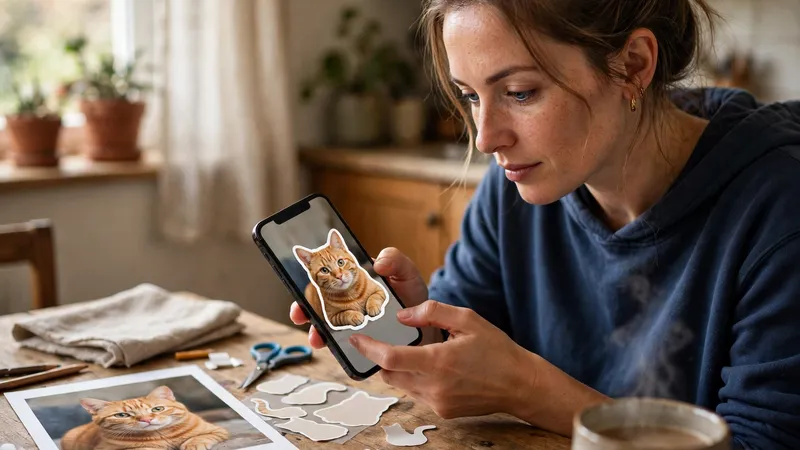
On the preview screen, WhatsApp shows you the sticker it made from your photo — usually the subject cut out from the background, and sometimes the full photo as well. Pick the version you like best from the preset options shown.
Now you can make it your own: add text on top, draw on it with your finger, or place another sticker or emoji over it. The tools are on the preview screen — tap the text icon for words, the pen for drawing, and the sticker icon to add more. If you make a mistake, use the undo button to go back a step.
Send it and save it for later
When you are happy with how it looks, tap the send button to send the sticker in the current chat. Your sticker is now saved in your sticker tray, so you can send it again in any chat without making it again.
To keep your best stickers easy to find, tap a sent sticker and add it to your favourites. You can repeat these steps with more photos to build a small set of your own stickers — your friends will see them as your personal stickers, not the usual ones everyone has.
Tips
- Photos with a plain, bright background give the cleanest cut-out — busy backgrounds confuse the automatic cropping.
- Add a short funny word on the sticker before you send it — text makes a personal sticker much more fun to use in chats.
- Make a few stickers of the same person or pet in different moods — a happy one, a laughing one, a surprised one — so you have one ready for every chat.
Keep in mind
- Only make stickers from photos you have the right to use. Do not turn someone else's photo into a sticker without asking them first.
- WhatsApp says stickers must be legal and acceptable under its rules — do not make stickers from rude, hateful or copied content.
- Be careful with photos of children — do not share stickers made from a child's photo in groups or with people you do not know well.
- If an app outside WhatsApp asks you to pay or sign in to make stickers, skip it — WhatsApp's own creator is free and built into the app.
FAQs
I cannot see the Create button. What should I do?
Tap the emoji icon beside the message box, then the sticker icon, and look for Create. If it is not there, update WhatsApp from your app store and try again. The feature is only available in the latest Android and iOS versions of WhatsApp.
Is my photo safe when I make a sticker from it?
Yes — the photo you pick stays on your phone and inside your chat. WhatsApp does not upload your photo anywhere else when you make a sticker this way. Still, only use photos you have the right to use, and ask before making a sticker of someone else.
How do I save my sticker so I can use it again later?
Tap the sticker in the chat to see it bigger, then tap Add to Favourites — or open the sticker tray and tap the star to add it there. Your favourite stickers stay in the tray, so you can send them again in any chat without making them again.
Why does my sticker look rough or blurry around the edges?
Use the original photo from your camera if you have it — a photo saved from a forwarded message is already compressed, so its edges can look rough once the background is removed. Also pick a photo where the subject stands out clearly from the background, with good light on it.