How to Send Money with UPI
Published: November 10, 2026
Source: NPCI — UPI official guidance
Send money instantly to a phone number, UPI ID or bank account — safely.
Before you start
- Make sure your UPI app is set up and you know your UPI PIN — the 4- or 6-digit number you set when you first set up UPI. Never share it with anyone, not even someone who says they are from your bank.
- Keep the receiver’s details ready — their phone number, UPI ID, or bank account number — and check the name the app shows before you pay: if it is not the person you meant to pay, stop and go back.
- Check the amount digits once more before you continue — ₹500 is very different from ₹5,000.
Open your UPI app
Open your UPI app — Google Pay, PhonePe, Paytm, BHIM, or your bank’s own app. On the home screen, look for a button that says “Send Money”, “Pay”, or “To Mobile” and tap it.
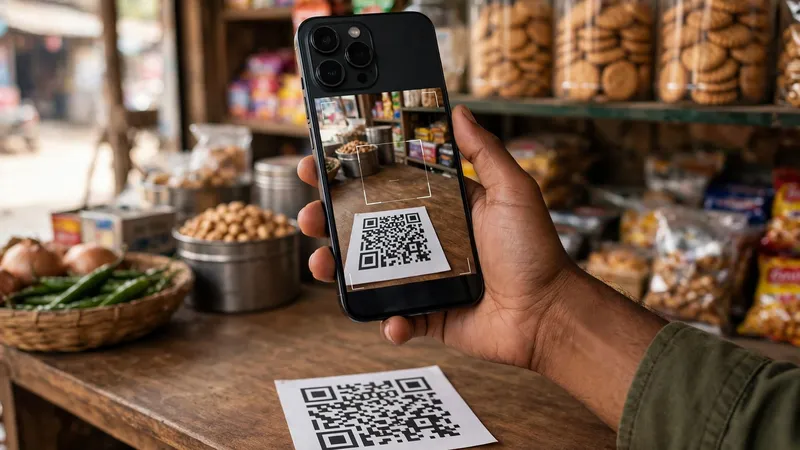
The app will ask how you want to find the receiver. You have four choices: a phone number, a UPI ID (it looks like name@okhdfcbank), a QR code you scan with your camera, or a bank account number with its IFSC code. For most people, the phone number is the easiest — just type the number of the person you want to pay.
Enter the receiver and amount
Type in the receiver’s details — the phone number, the UPI ID, or the bank account number. The app will then show you the name of the person or business linked to it. Read that name carefully: this is the most important check in the whole payment. If the name is not the person you meant to pay, stop and go back.
If the name is right, type the amount. Check the digits once more before you continue — ₹500 is very different from ₹5,000. Then tap “Pay” or “Proceed” to move to the next screen.
Add a note (optional)
On the payment screen, you will see a small box for a note or remark. Type a few words about what the payment is for — for example, “June rent” or “Birthday gift”.
This step is optional, and you can leave the box blank if you like. But a short note helps both you and the receiver remember the payment later, and it makes the payment easy to find in your transaction history.
Enter UPI PIN and confirm
The app will now ask for your UPI PIN — the 4- or 6-digit number you set when you first set up UPI. Type it on the PIN screen inside your own app. Your PIN is private: never tell it to anyone, not even to someone who says they are from your bank, and never type it anywhere except your own app.
After you enter the PIN, tap “Pay” or the confirm button. The app will show a tick or a “Payment successful” message, usually within a few seconds. You will also get a message from your bank — keep it until you are sure the receiver has got the money.
Tips
- For a new receiver, send a small test amount first.
- Keep a screenshot of important payments (like rent or a big purchase), so you have proof if there is ever a question about it.
- Before a big payment, check your daily limit inside your app — the limit depends on your bank and your app.
Keep in mind
- Never share your UPI PIN or OTP with anyone — not even with someone who says they are from your bank. Real bank staff never ask for them.
- No UPI PIN is ever needed to RECEIVE money — anyone asking for your PIN to “send” you money is a scammer.
- Never approve a payment request or “collect request” from a stranger. If you were not expecting it, do not approve it.
- Always check the receiver’s name on the screen before you pay. If the name looks wrong, stop.
FAQs
Payment failed but money cut?
Most failed payments are refunded automatically. How long it takes depends on your bank. If the money has not come back, check the payment status in your app and contact your bank with the transaction details.
I sent money to the wrong person. What can I do?
First, contact the person and ask them to send the money back. A successful UPI payment cannot be undone from the app. If you cannot reach the person, contact your bank with the transaction details (date, amount, and the UPI reference number) and ask for help. Getting the money back usually depends on the receiver agreeing to return it.
I typed the wrong amount. Can I get it back?
If you have not entered your PIN yet, just go back and fix the amount before you confirm. If the payment has already gone through, it is the same as sending money to the wrong person — contact the receiver and ask them to return the extra money, and contact your bank if they do not.
How do I know if my payment went through?
The app shows a tick or a “Payment successful” message, and you get a message from your bank. You can also check the payment in your app’s transaction history, or check your bank balance to confirm the money left your account. If the app says “pending”, wait a little and check again before you try to pay a second time — paying twice by mistake is easy when you are in a hurry.