How to Book a Train Ticket on IRCTC from Your Phone
Published: November 12, 2026
Source: contents.irctc.co.in — official guidance
Book your train ticket from your phone on the official IRCTC app or website — no counter visit and no agent needed.
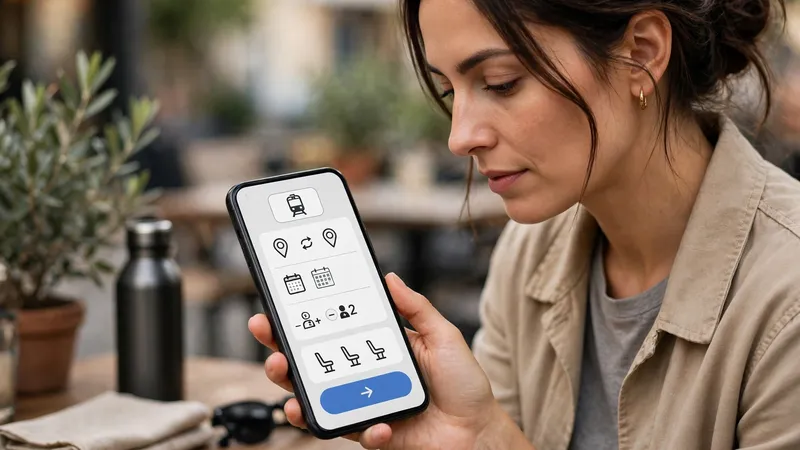
Before you start
- Keep your IRCTC username and password ready, and the phone with your registered mobile number nearby for OTPs.
- Keep the full name, age and gender of every passenger ready before you start searching.
- Keep a payment method ready, such as UPI, a debit card or net banking, so you can pay without delay.
Create your IRCTC account first
Open the official IRCTC Rail Connect app from your phone's official app store, or open the IRCTC website in your browser. If you do not have an account yet, tap Register and fill in your name, mobile number, email address and home address, then choose a username and password.
Verify your mobile number and email with the OTPs sent to you, and log in once to check that your account works. Keep your login details private and written down safely — you will need them every time you book, so do not create a second account if you forget your password; use the forgot-password option instead.
Search for your train
Log in to the app or website and fill in the journey form: your starting station in the From box, your destination in the To box, your date of travel, and the class you want. Type the station name and pick the correct station from the list that appears, because one city can have more than one station.
Tap Find Trains or Search to see the trains for that date. Each train shows its departure and arrival times and the seat availability for each class. Availability labels tell you whether seats are confirmed, partly shared, or on a waiting list — read them carefully before you pick a train, and check the current fare shown on the screen.
Pick your train and add passenger details
Tap Book Now on the train and class you want. On the passenger page, enter the full name, age and gender of every passenger, and choose a berth preference if the app asks for one. Take your time here, because the names on the ticket must match the passengers who will travel.
Check the spelling of every name and the mobile number you enter for booking updates. Then review the fare summary shown on the screen, including any charges, before you move to payment. If anything looks wrong, go back and correct it now — it is much harder to fix after payment.
Pay and save your e-ticket
Choose a payment method such as UPI, a debit or credit card, net banking or a wallet, and complete the payment on the secure payment screen. If you are new to UPI payments, read how to send money with UPI before you pay, so you know what the payment screen will ask for. Do not refresh the page or press the back button while the payment is processing.
Once the payment succeeds, your e-ticket is sent to you by SMS and email, with a PNR number for your booking. Open it and check the train name, date, station names, passenger names and class. Save a copy on your phone so you can show it offline, and carry an original photo ID for the journey, as one travelling passenger must show it with the e-ticket.
Tips
- Search and book early, when more trains and classes still show confirmed availability — popular trains fill up fast.
- Save your regular passengers in the app's passenger list, so you do not have to type the same names and ages on every booking.
- Check the train's running status on the day of travel, in case the timing has changed, and reach the station with time to spare.
Keep in mind
- Book only on the official IRCTC website or the official IRCTC Rail Connect app. Fake apps and websites that look like IRCTC can steal your money and login details.
- Never share your IRCTC password or any payment OTP with anyone on a call or message. No real IRCTC official asks for them this way.
- A ticket booked in one person's name cannot be transferred to someone else, so enter the names of the people who will actually travel.
- If a payment fails, check your booking history in the app before you try again, so you do not pay twice for the same ticket.
FAQs
Can I check train availability without logging in?
Yes, you can search for trains and see availability without logging in on the IRCTC website and app. But to actually book a ticket and pay, you must log in to your IRCTC account, so create one before you plan to book.
What should I do if my payment fails but money is deducted?
First check your booking history in the IRCTC app or website — a ticket is sometimes booked even when the payment screen shows an error. If there is no ticket, check the payment status with your bank or payment app, and contact IRCTC support from the official website. Do not book the same journey again until you know whether the first payment went through.
Do I need a printed ticket to travel?
No, a printout is not needed. The e-ticket on your phone, along with an original photo ID of one of the travelling passengers, is enough for the journey. Save the e-ticket offline as well, in case mobile network is weak at the station.
What if I enter a passenger name wrongly?
Small spelling corrections are not possible after booking in most cases, so check every name before you pay. If a name is wrong, you may need to cancel that ticket and book again, following the cancellation rules shown on the IRCTC app. Book carefully the first time to avoid this.